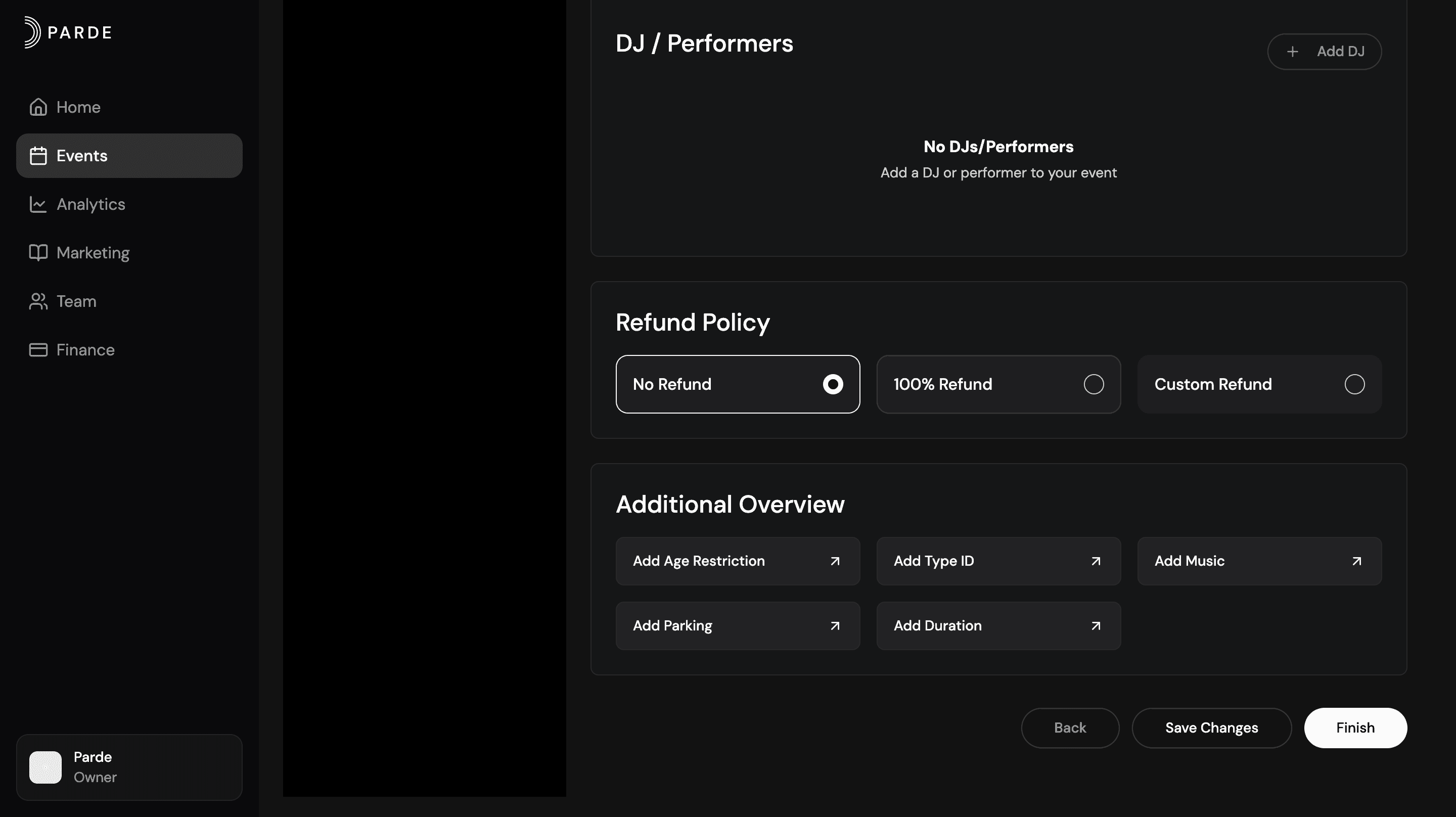
How to Add Full or Partial Refunds to Your Event
The steps below outline the required process for adding a refund policy to your event on Parde. For a more detailed explanation, please refer to the full event management guide.
Log in to your Parde account or create one.
Click your profile picture.
From the menu that appears, select Switch to Seller Side.
Go to the Events page.
Create a new event and add all required information.
Navigate to the Edit Event Details page.
In the refund section, choose 100% Refund or select Custom Refund to set partial refund terms.
Save your changes.
Done! Your refund policy has now been successfully added to your event.
How to Issue a Refund to a Buyer on Parde
Switch to the Seller Side.
Go to the Events page.
Select the relevant event.
Navigate to the Orders section.
Search for the buyer’s name or order.
Click Refund next to the order.
Confirm the refund.
Done! The ticket has been successfully refunded.
WHAT HAPPENS AFTER REFUND
The buyer receives a confirmation (usually by email).
The payment is returned to the buyer’s original payment method.
The refund may take a few business days to appear in the buyer’s bank account
The refunded ticket becomes invalid and cannot be used for entry.
The refunded amount is deducted from your Stripe balance or future payouts.
In short:The buyer gets their money back, and the ticket is no longer valid.